
Kim Pepper Creative App Information
Take Kim Pepper Creative With You
Download In Apple App Store
Download In Google Play Store
The free Kim Pepper Creative app is your one-stop hub for Christian art journaling, creative courses, community, and encouragement. Use the app to access the courses and memberships you already own, discover something new, and stay connected wherever you are.
Everything in One Creative Place
The Kim Pepper Creative app makes it easier to enjoy your courses and creative faith resources from your phone or tablet.
Whether you are creating at your art table, watching a lesson from the couch, or catching up while traveling, your library is right there with you.
Inside the app, you can:
-
Access the courses, workshops, and memberships you already own
-
Watch lessons from your phone or tablet
-
Pick up where you left off
-
Enroll in new courses and programs
-
Receive notifications about new lessons, events, and announcements
-
Join the Kim Pepper Creative community
-
Keep your creative faith resources organized in one place
What You’ll Find Inside the App
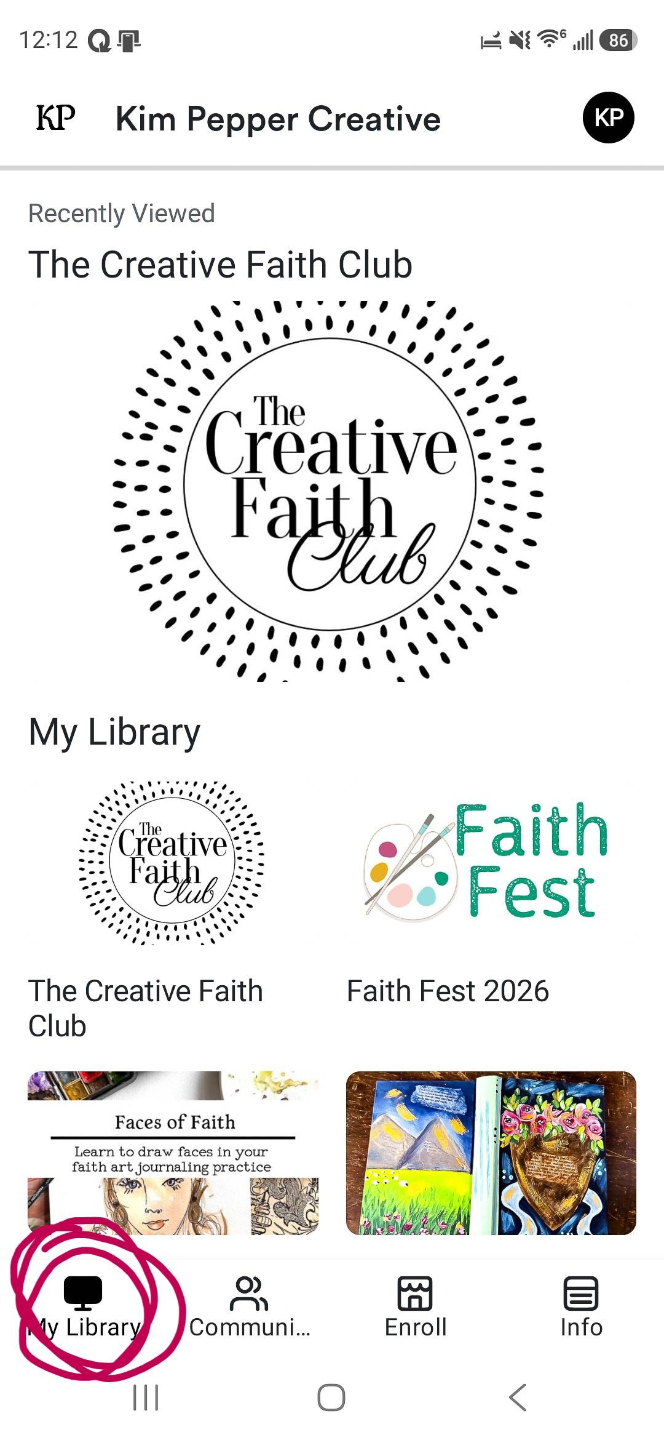
My Library
Your My Library tab is where you will find all the courses, workshops, and membership content connected to your Kim Pepper Creative account.
Anything you have already purchased or joined should appear here after you log in using the same email address connected to your account.
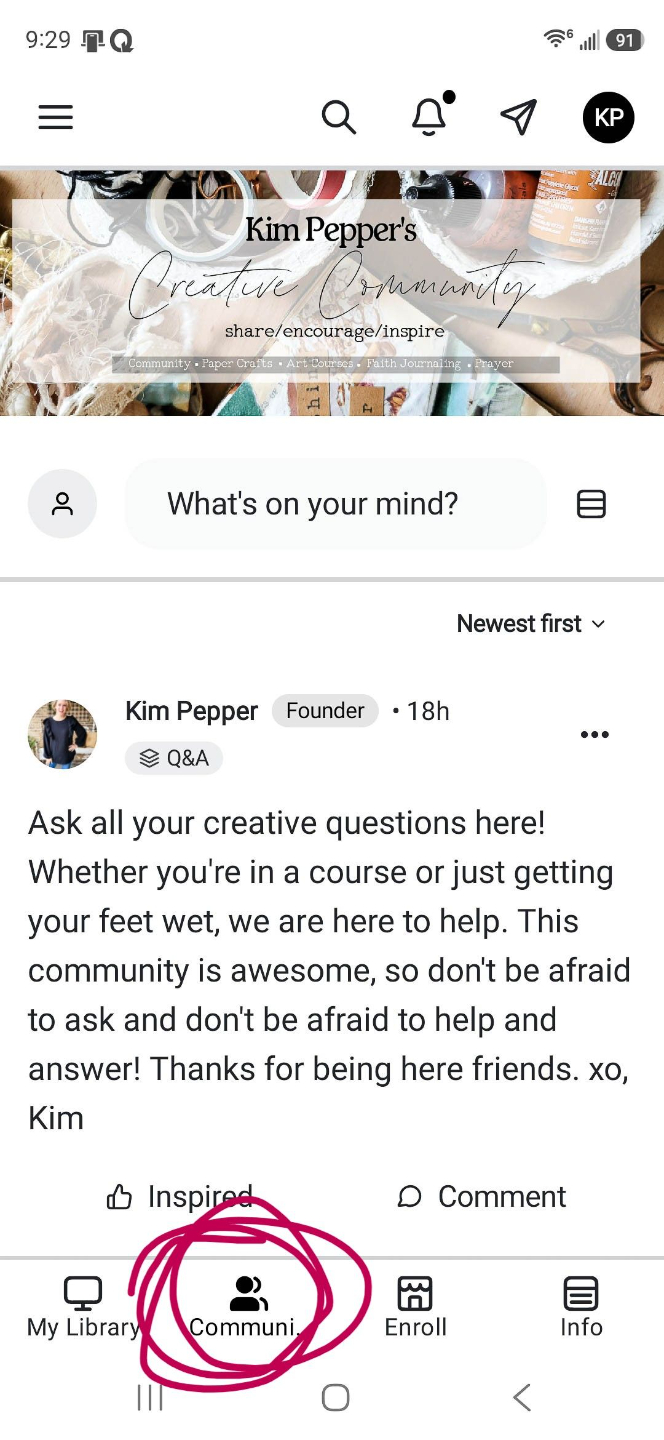
Community
Connect with other Christian women who love faith, creativity, art journaling, mixed media, and paper crafts.
Depending on the programs you are enrolled in, you may be able to join conversations, share your projects, ask questions, and find encouragement inside the Community tab.
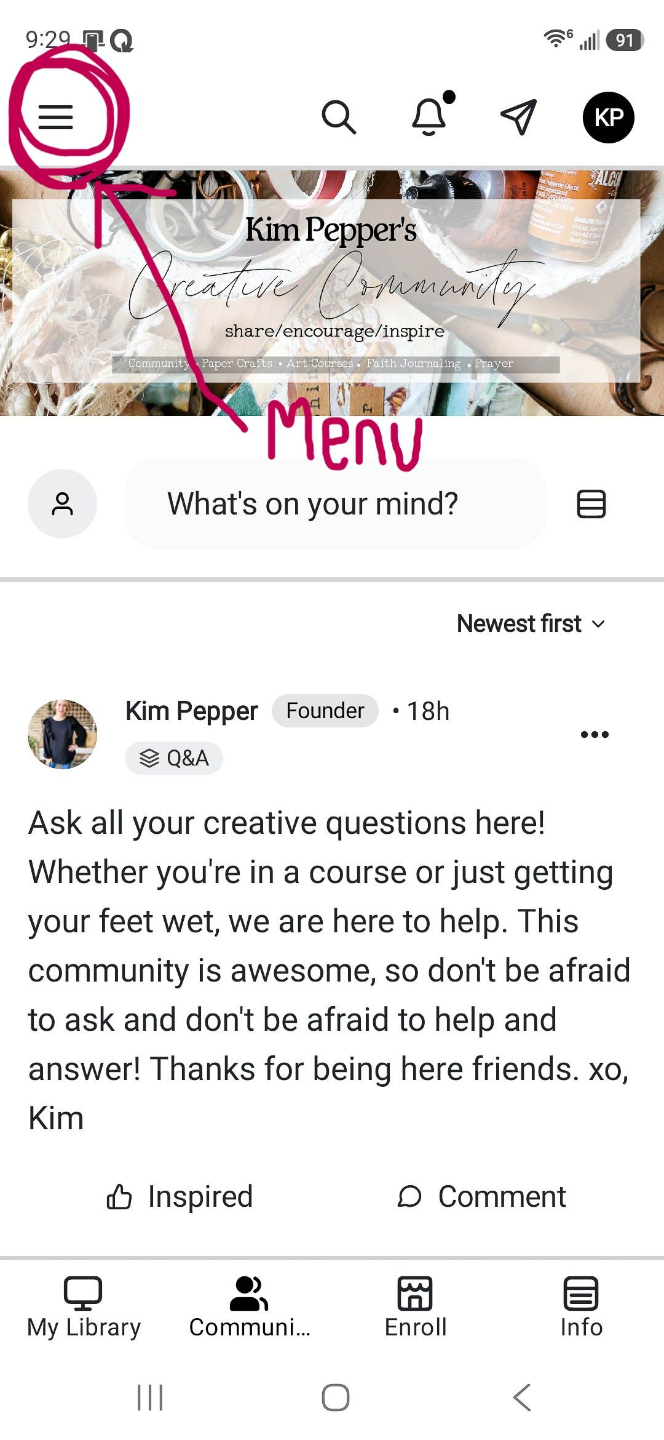
Navigating In Communities
Once you are inside the Communities tab, you will navigate this section of the app through the "hamburger" looking menu in the top left corner of your screen.
To navigate back to your library/courses/info use the icon menu along the bottom of your screen.
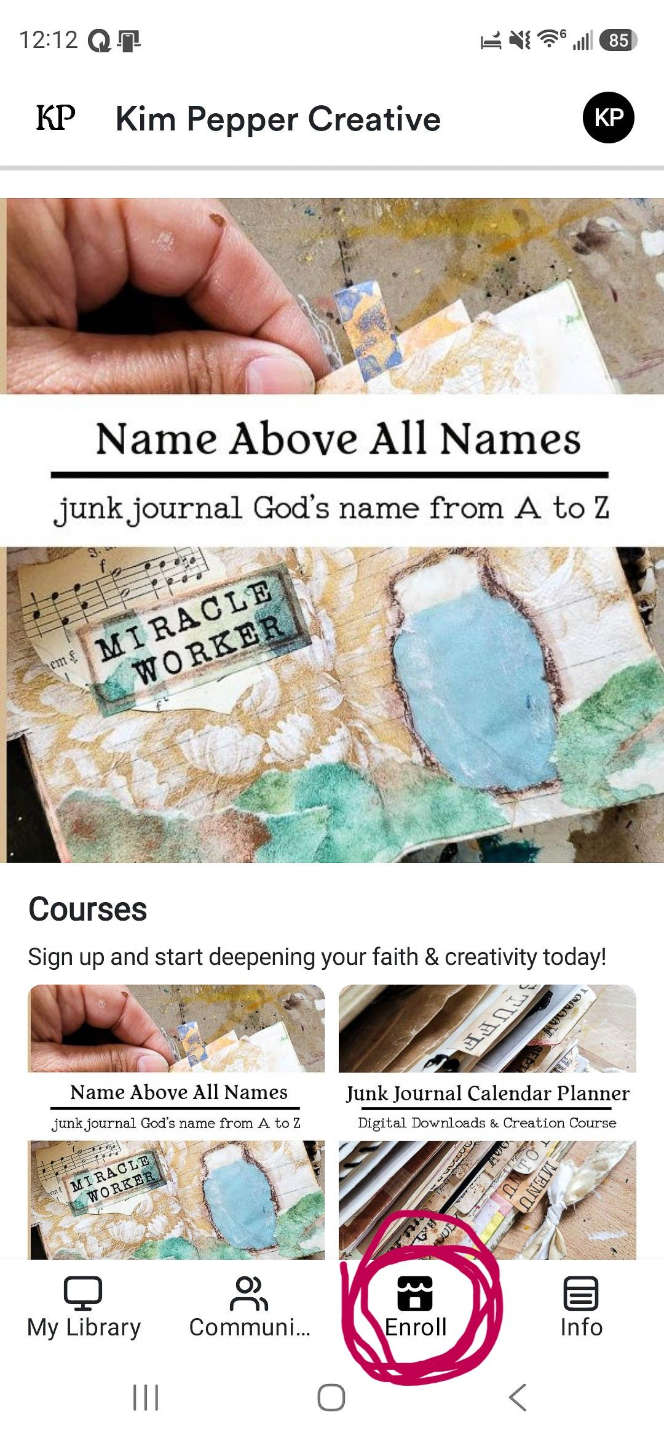
Courses
Ready to try something new?
Visit the Courses or Enroll tab to browse available courses, workshops, memberships, and other creative opportunities.
You can learn more about each offer and follow the provided link to complete your enrollment.
Info
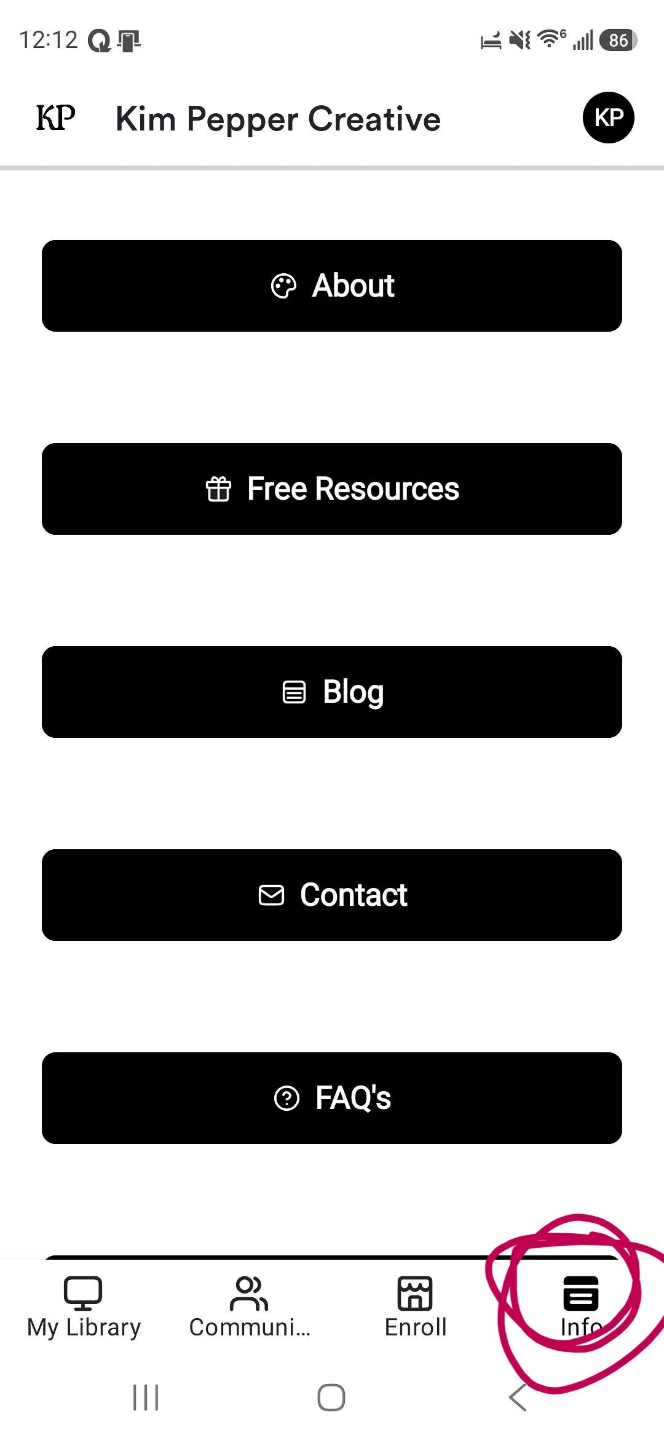
The Info tab is where you can find helpful details, important links, support information, and other resources related to Kim Pepper Creative.
What You Cannot Manage Inside the App
The app is designed primarily for accessing your content, learning, creating, and connecting.
Some account settings must still be managed through a web browser.
You cannot currently use the app to:
-
Update your credit card or payment method
-
Change or cancel a subscription
-
View or manage detailed billing information
-
Make certain changes to your account profile
-
Manage all account settings
To update billing, subscriptions, or account information, log in to your Kim Pepper Creative account through a web browser.
Already a Kim Pepper Creative Student or Member?
You do not need to create a new account.
Download the app and log in using the same email address and password you already use for Kim Pepper Creative.
Your existing courses, workshops, and membership content should appear inside the My Library tab.
If you have forgotten your password, use the password reset option on the login screen.
New to Kim Pepper Creative?
Welcome! Kim Pepper Creative is a place for Christian women to grow in faith and creativity through art journaling, mixed media, paper crafts, courses, workshops, and community.
You can browse available programs inside the Courses tab or explore everything currently available on the Kim Pepper Creative website.
Turn On Notifications
Be sure to allow notifications when you download the app.
Notifications may include:
-
New lesson announcements
-
Live event reminders
-
Course and membership updates
-
Community news
-
Special opportunities
-
Important account or program information
You can manage notification permissions through your phone or tablet settings. Below are steps to take for notification settings.
How To Turn On Notifications
Stay connected with everything happening at Kim Pepper Creative!
By enabling notifications, you'll be the first to know about new lessons, live events, community updates, and important announcements.
You can manage notifications, silencing some and allowing others, so you only receive the notifications you want.
* Please note - there may be more than one way you need to turn on notifications. Direction are below.
1. To receive notifications, you'll need to allow them on your device.
2. Some versions of the app may also include notification preferences within the app itself.
iPhone & iPad
The First Time You Open the App
When you first launch the Kim Pepper Creative app, you may see a message asking if you'd like to receive notifications.
Simply tap Allow.
If you accidentally selected Don't Allow, you can turn notifications back on at any time by following these steps.
Turn On Notifications
-
Open Settings on your iPhone or iPad.
-
Tap Notifications.
-
Scroll down and select Kim Pepper Creative.
-
Turn Allow Notifications to On.
-
Choose how you'd like notifications delivered:
-
Lock Screen
-
Notification Center
-
Banners
-
-
(Optional) Turn on Sounds and Badges if you'd like those enabled as well.
Android
Menu names may vary slightly depending on your device manufacturer.
The First Time You Open the App
If prompted, tap Allow to receive notifications.
Turn On Notifications
-
Open Settings.
-
Tap Notifications or Apps & Notifications.
-
Tap App Notifications, Manage Apps, or Apps.
-
Select Kim Pepper Creative.
-
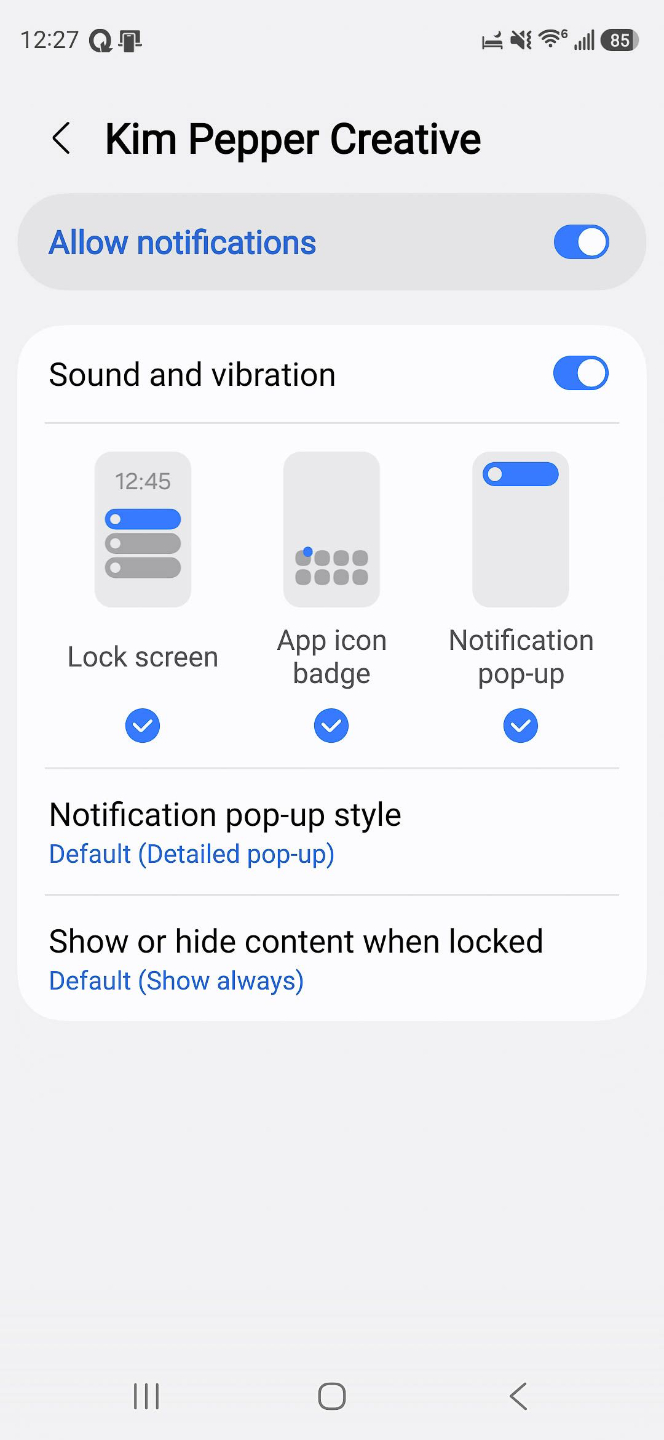
Turn Allow Notifications to On.
Depending on your device, you may also be able to customize sounds, lock screen notifications, and notification categories.
App Notification Settings
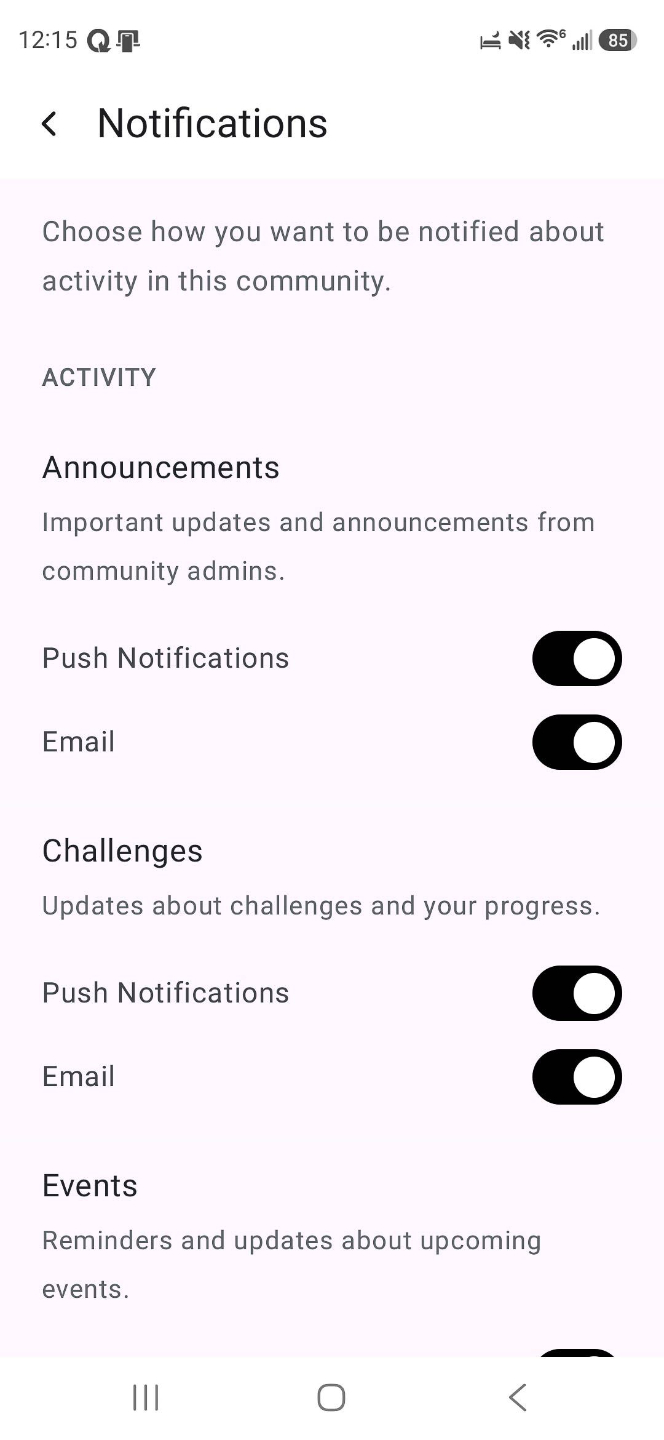
Some (most) versions of the Kim Pepper Creative app may include notification settings within the app.
If available:
-
Open the Kim Pepper Creative app.
-
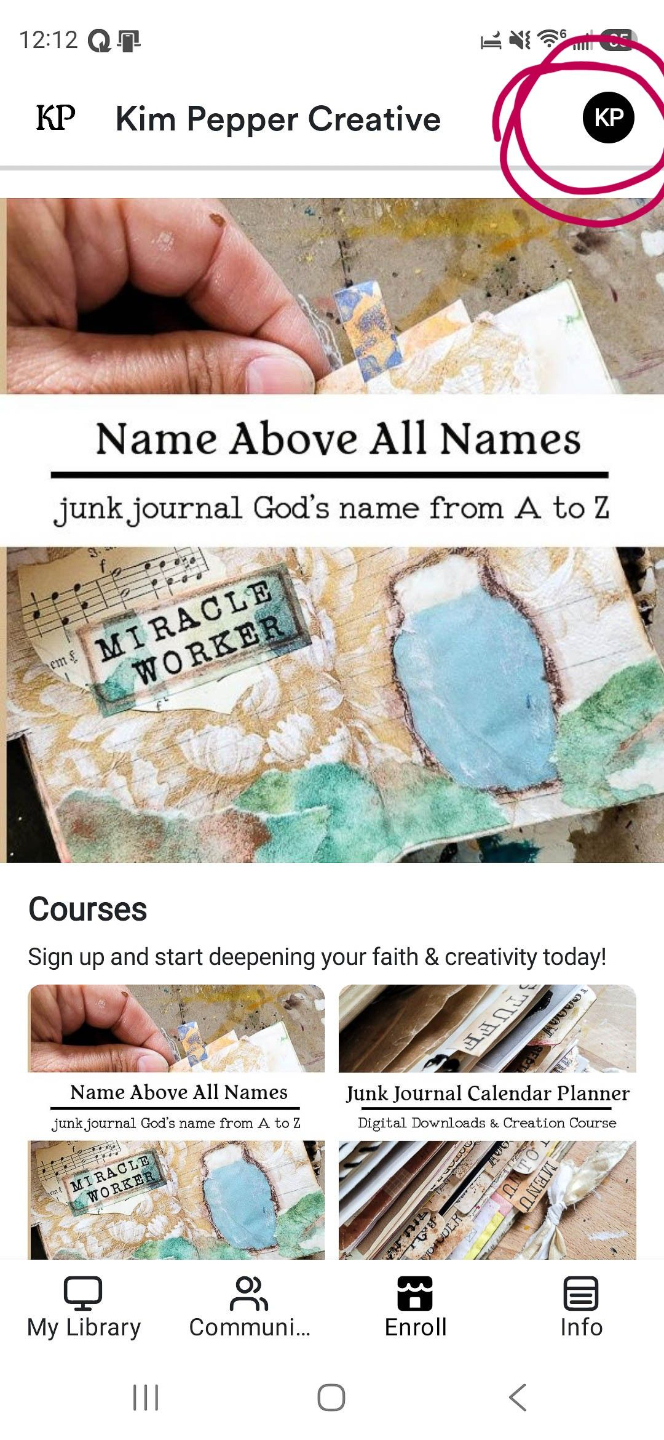
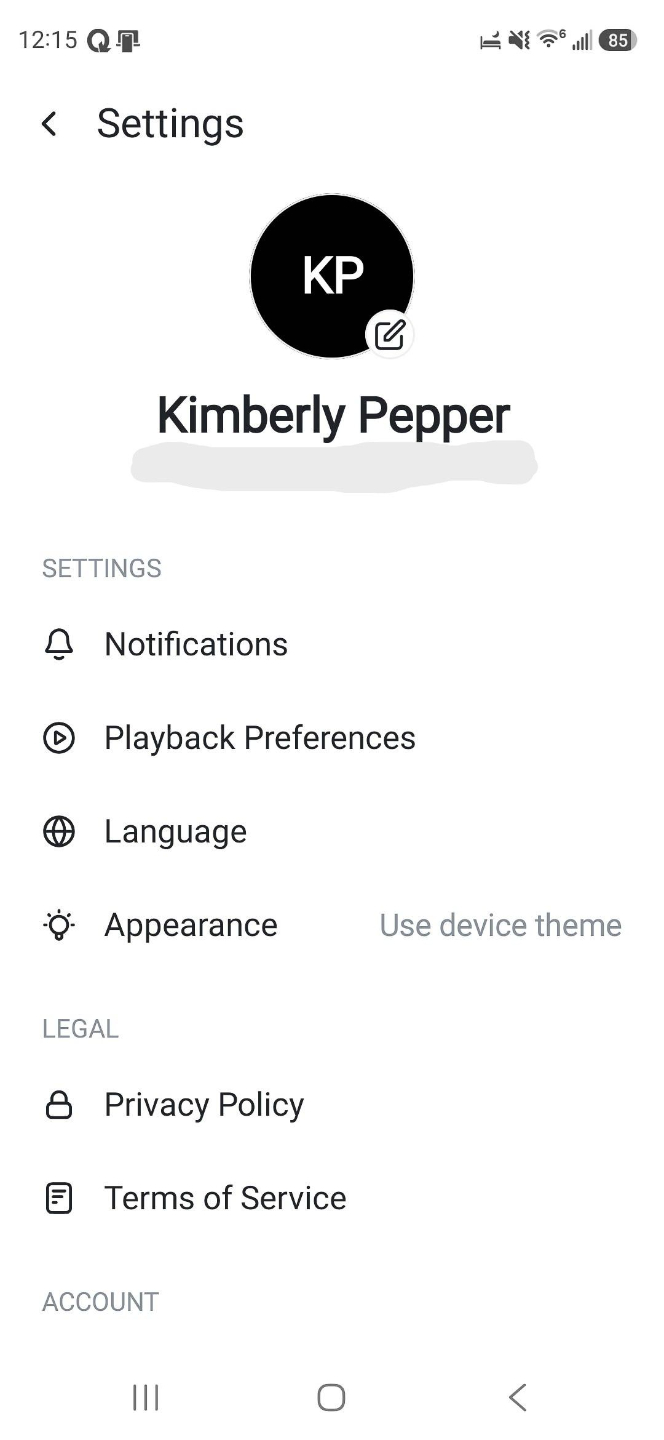
Tap the Info tab or your Profile/Settings.
-
Look for Notification Settings.
-
Turn on the notifications you'd like to receive.
- A Push Notification means you will get an alert on your phone or device.
Download the Kim Pepper Creative App
Take your courses, community, and creative faith inspiration with you wherever you go.
Need Help?
If you are having trouble logging in, locating your content, or using the app, please contact us for support.
Please remember that billing and subscription changes must be completed through a web browser rather than inside the app.
